Prevent issues with user profiles on VDA’s Offboarding MS Defender

Managing virtual desktop infrastructure (VDI) environments can be challenging, especially when persistent user profile issues disrupt productivity. One common culprit is Microsoft Defender, which, if not properly offboarded before sealing a master image, can leave user profiles stuck or cause temporary profile errors after Citrix sessions.
These issues often arise due to lingering Defender processes or incomplete sign-off routines, leading to frustrating logon problems for end users. In this blog, we’ll explore why these problems occur, highlight the risks of skipping the offboarding process, and provide a step-by-step guide to ensure your golden images are correctly prepared. By following Microsoft’s recommended procedures, you can prevent profile-related headaches and maintain a smooth, reliable VDI experience for your organisation.
We have observed these types of errors in environments that were caused by Defender, although the specific error messages may vary.
For Example:
- 2097,0,2025/xx/xx 11:34:40:15818,12592,752,UserProfileManager.exe,0,UserProfileManager,UserProfileManager.cpp,10358,DispatchLogonLogoff,,9,Information,“DispatchLogonLogoff: Logon/Logoff in process, re-trying…”,””
- 2098,0,2025/xx/xx 11:34:56:65985,21864,5540,SecurityHealthService.exe,0,upmAction,upmAction.c,8853,UPMACTION_GenerateFileNameForRedirection,,9,Error,”FltGetFileNameInformation: failed for windowsdefender:\SecurityProductInformation.ini with 0xc0000033″,””
- 2099,6,2025/xx/xx 11:34:58:41911,21344,5184,svchost.exe(),0,upmAction,upmAction.c,8853,UPMACTION_GenerateFileNameForRedirection,,9,Error,”FltGetFileNameInformation: failed for windowsdefender:\SecurityProductInformation.ini with 0xc0000033″,””
- 2100,7,2025/xx/xx 11:34:58:42199,21344,5184,svchost.exe(),0,upmAction,upmAction.c,8853,UPMACTION_GenerateFileNameForRedirection,,9,Error,”FltGetFileNameInformation: failed for \Windows\System32\windowsdefender:\.DLL with 0xc0000033″,””
If Microsoft Defender is not properly offboarded before sealing a master image in a VDI environment, it can lead to persistent and disruptive user profile issues. Specifically, lingering Defender processes or incomplete sign-off routines may cause user profiles to become stuck or result in temporary profile errors after Citrix sessions.
These problems often manifest as repeated logon failures, error messages related to Defender components (such as failures to access SecurityProductInformation.ini or DLL files), and overall instability in user sessions. Ultimately, neglecting the offboarding process can undermine the reliability of your VDI deployment, increase support workload, and negatively impact end-user productivity.
To avoid this issue, you need to ensure that Microsoft’s recommended procedures are followed and that the golden images are properly offboarded before sealing. This needs to be done on golden images before sealing is user using Defender for these systems.
This applies to using:
- Microsoft Defender for Endpoint Plan 1 and Plan 2
- Microsoft Defender for Endpoint for servers
- Microsoft Defender for Servers Plan 1 or Plan 2
- Virtual desktop infrastructure (VDI) devices
- Windows 11
- Windows 10
- Windows Server 2025
- Windows Server 2022
- Windows Server 2019
- Windows Server 2016
- Windows Server 2012 R2
- Windows Server 2008
How to offboard Microsoft Defender
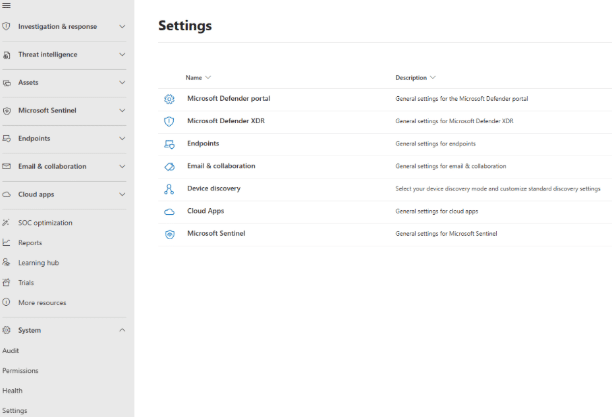
- Get the offboarding package script from the Microsoft Defender portal, if you are using a script on image to onboard device using script “WindowsDefenderATPOnboardingPackage.cmd” or “Onboard-NonPersistentMachine.ps1” in C:\WINDOWS\System32\GroupPolicy\Machine\Scripts\Startup (if using different way like GPO or other please follow instructions in links below). If you don’t have access to the portal, ask the support team to download it for you.
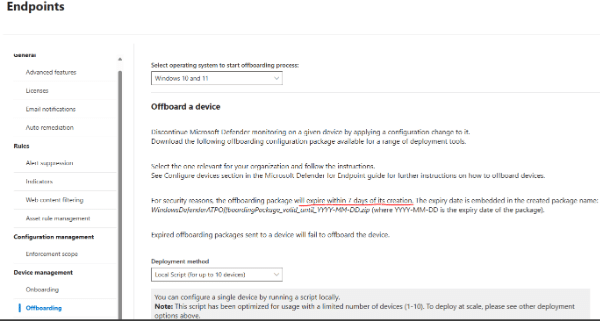
Note: Offboard script working only 7days, that means every time you sealing image you need to use new script
- 1
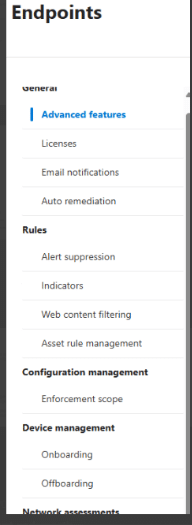
- In the navigation pane, select Settings > Endpoints > Device management > Offboarding.
- Select Windows 10 or Windows 11 as the operating system.
- In the Deployment method field, select Local Script.
- Select Download package and save the .zip file.
- 2 Extract the contents of the .zip file to a shared, read-only location that devices can access. You should have a file named WindowsDefenderATPOffboardingScript_valid_until_YYYY-MM-DD.cmd.
- 3 Open an elevated command-line prompt on the device and run the script:
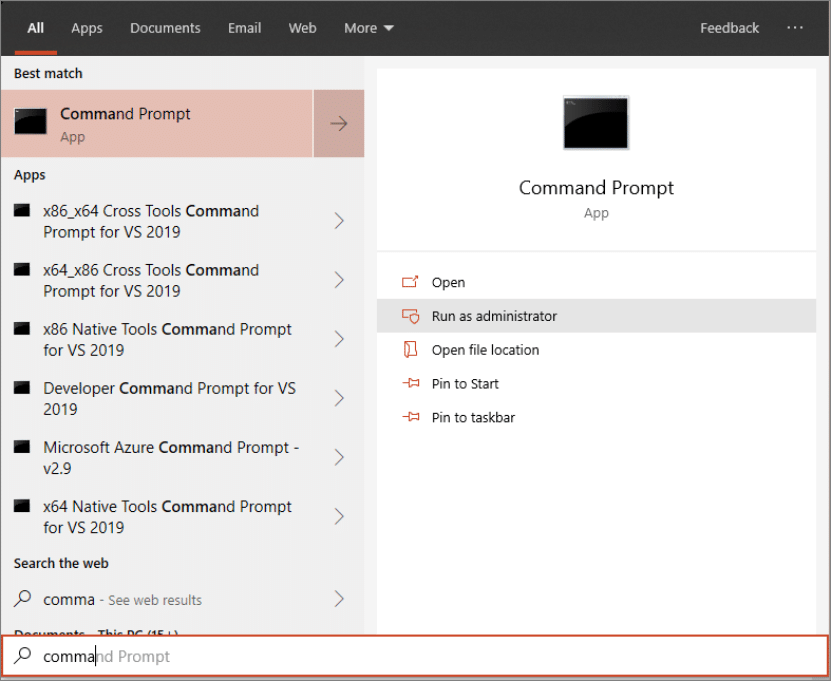
- Go to Start and type cmd.
- Right-click Command prompt and select Run as administrator.
- Type the location of the script file. If you copied the file to the desktop, type: %userprofile%\Desktop\WindowsDefenderATPOffboardingScript_valid_until_YYYY-MM-DD.cmd
- Press the Enter key or select OK.
- Ensure the sensor is stopped by running the following command in a CMD window:
sc query sense
- Run the following commands in a CMD window:
- del “C:\ProgramData\Microsoft\Windows Defender Advanced Threat Protection\Cyber\*.*” /f /s /q
- REG DELETE “HKLM\SOFTWARE\Microsoft\Windows Advanced Threat Protection” /v senseGuid /f
- REG DELETE “HKLM\SOFTWARE\Microsoft\Windows Advanced Threat Protection” /v 7DC0B629-D7F6-4DB3-9BF7-64D5AAF50F1A /f
- REG DELETE “HKLM\SOFTWARE\Microsoft\Windows Advanced Threat Protection\48A68F11-7A16-4180-B32C-7F974C7BD783” /f
- Exit
Seal the image as usual, and next time VDA will be booted and onboarded using an onboard script.
Need help to offboard Microsoft Defender
If your organisation is looking to streamline VDI management and avoid common pitfalls with Microsoft Defender, Enterprise Solutions is here to help. Our team of experts has extensive experience resolving these challenges and ensuring your virtual desktop environment runs smoothly. For tailored advice or hands-on support, contact us at asktheexpert@enterprise-solutions.ie .
Helpful links
- Onboard Offboard non-persistent virtual desktop infrastructure (VDI) devices in Microsoft Defender XDR – https://learn.microsoft.com/en-us/defender-endpoint/configure-endpoints-vdi#updating-virtual-desktop-infrastructure-vdi-images-persistent-or-non-persistent

As a Senior Systems Engineer, Mindaugas is recognised by both customers and his peers as a professional that has strong knowledge of difference aspects of EUC. He specializes in Microsoft, Citrix and Nutanix technologies, as well as different endpoint solutions such as Intune and various thin client vendors.

As a Senior Systems Engineer, Mindaugas is recognised by both customers and his peers as a professional that has strong knowledge of difference aspects of EUC. He specializes in Microsoft, Citrix and Nutanix technologies, as well as different endpoint solutions such as Intune and various thin client vendors.