How to Deploy Teams 2.0 On Citrix Virtual Apps, Desktops, and DaaS

Microsoft Teams is a critical collaboration platform but delivering it effectively in virtual environments has historically been very complex. Legacy Teams clients placed significant strain on VDI infrastructure, often resulting in poor performance and inconsistent user experience.
Microsoft Teams 2.0 represents a fundamental redesign, delivering a lighter, faster client built for modern architectures. For organisations running Citrix Virtual Apps, Desktops, and Citrix DaaS, this shift is particularly significant as Classic Teams approaches retirement and support boundaries tighten.
Deploying Teams 2.0 on Citrix will enable organisations to deliver a performant, secure, and fully supported Teams experience while reducing resource consumption and operational overhead.
Microsoft Teams 2.0 delivers faster performance, improved responsiveness, and lower resource usage making it ideal for virtual desktop environments. Deploying Teams 2.0 on Citrix Virtual Apps and Desktops or Citrix DaaS requires meeting specific software and configuration requirements to ensure optimal performance.
The minimum Citrix product requirements needed for this update:
Citrix Workspace App:
- Windows: 2402 LTSR (any CU), 2405 CR
- Linux: 2408
- Mac: 2405
- HTML5: 2404.1
- ChromeOS: Latest Workspace app from Chrome Web Store; previous version supported until next release
Citrix Virtual Delivery Agent (VDA):
- 2507 LTSR (any CU), 2402 LTSR (any CU), 2203 LTSR (any CU), 2407 CR
- Note: 1912 LTSR is not supported
You can download Citrix Workspace and VDA here: Download
Installing Teams 2.0 with Outlook Integration
To enable the Teams Meeting add-in for Outlook, you will need to:
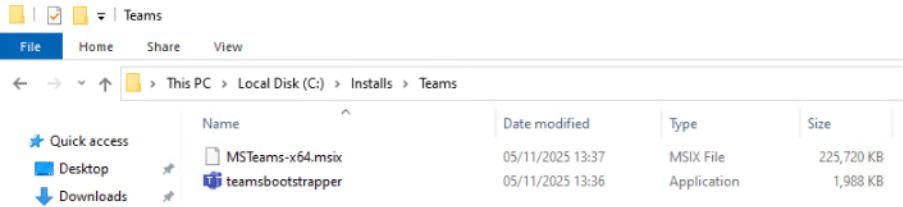
- Download the Teams .exe installer Download Link
- Download the MSIX x64 package Download Link
- Open PowerShell as Admin
- Run the installer, adjusting the path to your MSIX file:
- .\teamsbootstrapper.exe -p -o –installTMA “c:\folder path\to your\teams.msix”
Teams 2.0 AutoStart Configuration
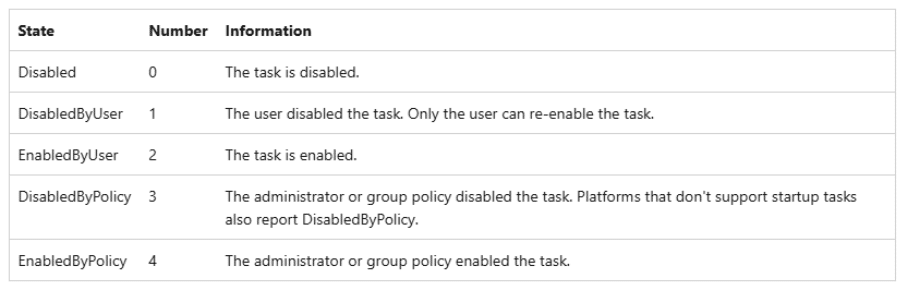
By default, MSIX-based Teams doesn’t auto-start until the first launch. Users can enable AutoStart via Teams settings or Windows settings. AutoStart can also be enforced using the registry.

Teams 2.0 Optimisation
For optimal performance, deploy the following registry key on the VDA:
Optimise Teams 2.0 on Citrix

Disable Teams Auto-Update in Non-Persistent VDI
To prevent Teams from auto-updating in non-persistent environments, configure the appropriate registry key on the virtual machine.

Enable Roaming for Teams 2.0
Allow users’ Teams settings and chat history to roam across sessions by following Citrix Profile Management guidance:
Enjoy Teams 2.0 on Citrix
By meeting these requirements and following these steps, Teams 2.0 will run efficiently on Citrix, providing users with a fast, seamless collaboration experience across devices and locations.
Our team of experts has extensive experience resolving these challenges and ensuring your virtual desktop environment runs smoothly. For tailored advice or hands-on support, contact us at asktheexpert@enterprise-solutions.ie
For full guidance, see the official Microsoft documentation: Teams VDI Requirements & Deployment.

Ulrich is an experienced Solutions Engineer, with over two decades of experience across numerous industries. Ulrich supports clients deliver best in class EUC environments through his deep understanding of customers’ requirements and needs.